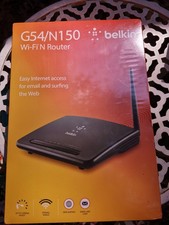
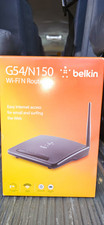
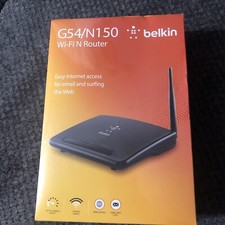
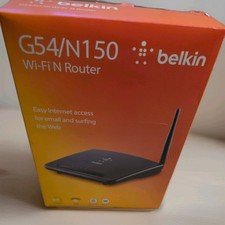
BELKIN G54/N150 Wi-Fi N Router | F9K1009 | 8830-11448 Rev. B00 | USED | TESTEDAfter years of repairing, tinkering, testing, proof-of-concepts, presentations, & DIY / hobbyist projects, the time has come to downscale and part with some of the equipment that is no longer needed.
** USED ITEM **Item is used, but tested -- see pictures.
Item comes **AS PICTURED** and does NOT include:
- Power Supply / Adapter
- Original Box
- Software CDs or Driver Discs
- Service Card
- Wall Mount Kit
- Cables or Type of Follow-Up Support
The top of the router has surface level Scratches & Imperfections in the Lower Right Corner
Required Power Input : 12V ⎓ 0.5A
Easy Internet Access for Email and Surfing the Web
The Belkin N150 Wireless Router is ideal for surfing the web, emailing and instant messaging.
Featuring Belkin's Simple Start browser-based setup, installation is easy and uncomplicated -- just use a smartphone, tablet or computer to set up your router.
Delivering speeds of up to 150Mbps or up to 2X faster than G technology, you can connect from virtually anywhere in your home.Connecting Devices to the Network
Wireless devices such as computers, network printers, and gaming systems can connect to the Router with a few simple stepsConnect to the Router Manually / Directly
The default network name and password are printed on the foot of the Router
Use a computer, tablet, or smartphone to connect to the wireless network with those credentials.Connecting with the WPS Button
Start WPS Push Button Connection [ WPS PBC ] on a computer or other Wi-Fi device that you would like to connect wirelessly to the Router.
Often there will be a button for this purpose in software that came with the device, or a physical [ WPS ] button on the device itself.Within two minutes, press the WPS button on your RouterThe WPS indicator will blink green while it listens for your Wi-Fi device.
Once a connection is established, the light will turn green for about 5 minutes and then go out.
If a connection is not established, the light will blink green for 30s.
You may repeat the process to try again.You can repeat this process for each WPS-enabled device you’d like to add to your network.
Features & Highlights
- Speed
Achieve speeds Up to 150 Mbps [ 2.4 Ghz ] for fast and secure connections
- Wi-Fi Range
MultiBeam technology provides maximum coverage virtually anywhere in the home
- Compatibility
Works seamlessly with wired ‘G’ devices
- NAT IP Address Sharing
To save you the cost of adding IP addresses per computer in your house, the Belkin Router uses Network Address Translation [ NAT ] technology, allowing you to share a single IP address across your network
- SPI Firewall
The N150 Router is equipped with a firewall that will protect your network from a wide array of common attacks and viruses
- Universal Plug-and-Play [ UPnP ] Compatibility
The UPnP [ Universal Plug-and-Play ] feature in your Router offers seamless operation of voice and video messaging, games, and other applications that are UPnP-compliant
- Web-Based Advanced User Interface
You can easily make changes to the Router’s advanced settings through your web browser
These changes can be made from any computer on the network
Lights & IndicatorsFront / Top PanelPower Light
Off -> The Router is not plugged into a power source
Solid Green -> Power is supplied to the RouterWLAN Light
Off -> WLAN is disabled
Blinking Green -> Wireless data is being transmitted on the WLAN
Solid Green -> WLAN is enabled but no data transferWi-Fi Protected Setup [ WPS ] Light
Off -> Idle
Blinking Green -> The Router is listening for a WPS-enabled computer or other deviceSuccessful Connection -> The WPS light is SOLID GREEN for 5 minutes and then goes out when the Router has made a secure connection with the computer or other device
Failed Connection -> The WPS light is BLINKINGGREEN for 30s after the WPS connection failsWAN Light
Off -> WAN connection is not created
Blinking Green -> Data is being transmitted on the WAN port
Solid Green -> The Router is connected to the InternetLAN Light
Off: LAN connection is not created.Blinking Green -> Data is being transmitted on the LAN port
Solid Green -> The Router is connected to devices through Ethernet cablesBack PanelReset Button
This button is used to restore the factory default settings
To reset the Router, press and hold this button for 8-10 secondsPower ConnectorConnect the included power supply to this jackModem [ WAN ] ConnectorConnect your modem to this port using an Ethernet cableWired (LAN) ConnectorsConnect computers and other wired network devices to these ports using Ethernet cablesWPS ButtonThe WPS button on the back of your Router can be used to help establish a secure connection between the Router andother WPS-enabled Wi-Fi devices such as computersSpecificationsMax. Link RateUp to 150MbpsAntenna Form FactorInternal IntegratedLED Indicators
1x Power
1x WLAN
1x WPS
1x WAN
4x LAN | [ 1 - 4 ]Compliant Standards
Ethernet 10/100
IEEE 802.11b [ Up To 11Mbps ]
IEEE 802.11g [ Up To 54Mbps ]
IEEE 802.11n [ Up To 150Mbps ]Integrated Switch4-Port SwitchInterface Connector TypeRJ-45Ports
1 x WAN
4 x LAN 10/100Network Transport ProtocolIPSec | L2TP | PPPoE | PPTP | TCP/IPWPS Push Button SecurityYesAuthentication Method(s)Radio Service Set ID [ SSID ]Wireless Security
256-bit WPA®/WPA2®
64/128 WEP Encryption
Wi-Fi Protected Setup™FirewallNAT & SPIRemote Management ProtocolHTTPRadio Frequency Band | Wireless Operating Spectrum2.4 GhzOperating Temperature0°C - 40°C | 32°F - 104°FStoring Temperature-20°C - 65°C | -13°F - 155°FOperating Humidity10% - 85% Non-CondensingStoring Humidity5% - 95% Non-CondensingTestingUsed a Universal Power Adapter [ ** NOT INCLUDED ** ] to power and test the routerItem was connected to a Laptop running Windows 11 via an Ethernet Port to gain access to the Management Portal webpage and settings
A Pixel 3XL smartphone was [ SUCCESSFULLY ] used to test connection via wireless.-- See Pictures for ScreenshotsItem was ** NOT ** christened to our ISP - so no DSL or Internet is presentItem was FACTORY RESET and power cycled after testing.
Included Item
- BELKIN Wireless N150 Router | Model F9K1009V2 | Serial # - 31447RB9100846
Picture 1 shows:Top Down Side Angle View of Router | ** NOTE The Scratches / Imperfections in lower right corner **Picture 2 shows:Top Down View of Powered Router | Smartphone Connected on WLAN / Laptop Connected on LAN Port 3Picture 3 shows:Back of Powered RouterPicture 4 shows:Back of Router | [ Unobstructed View ]Picture 5 shows:Left Side of RouterPicture 6 shows:Front of RouterPicture 7 shows:Right Side of RouterPicture 8 shows:Bottom of Router with Passwords & PINs Obfuscated | 31447RB9100846Picture 9 shows:Computer Screenshot
Landing Page | Dashboard [ Indicating No Connection to an ISP ]Picture 10 shows:Computer Screenshot
Dashboard | Showing Advanced Settings Menu & [ Start of ] Router DetailsPicture 11 shows:Computer Screenshot
Dashboard | Showing Additional Router DetailsPicture 12 shows:Computer Screenshot
Advanced Settings Menu -> Connected Devices / DHCP Page | Showing Laptop & Smartphone testing devicesPicture 13 shows:Computer Screenshot
Basic WiFi -> Network Name PagePicture 14 shows:Computer Screenshot
Advanced Settings -> WiFi -> Wi-Fi Protected Setup PagePicture 15 shows:Computer Screenshot
Advanced Settings -> WiFi -> Use as an Access Point PagePicture 16 shows:Computer Screenshot
Advanced Settings -> Firewall -> Port Forwarding PagePicture 17 shows:Computer Screenshot
Advanced Settings -> Utilities -> System Settings PagePicture 18 shows:Smartphone Screenshot
Connection Information When Connected to Network [ 2.4 GHz ]Picture 19 shows:Smartphone Screenshot
Connected Devices Viewed on Smartphone
Miscellaneous
Information
Non-professionally taken pictures are of the actual item being shipped.Return Policy
This item is being sold *AS IS* and as pictured.** NO RETURNS ACCEPTED ON THIS ITEM **Make certain this is an item you can make use of or want before offerding.
Payment Method Any Managed Payment MethodPackaging
Item ships in a 6 x 8 x 3 Box
Item has a shipping weight of approximately 15 OZ
Shipping Method
USPS or FedEx Preferred : Most economic and trackable option
Contact seller prior to offerding to discuss alternate shipping methods.Item will USUALLY ship within one business day after payment is received;
GUARANTEED to ship within three business days after payment is received
Our other items ->
Browse Now!
Add us as a Favorite Seller.
We try to add a variety
of new items every week
Click Here to Add Us to your Favorites!