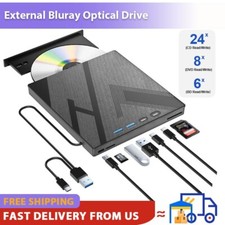
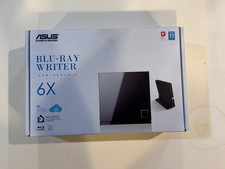
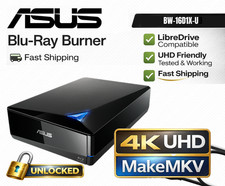
💿[Support 50G Bluray Disc Read&Write]: The External Blu Ray Drive compatible with USB 2.0/3.0 & Type-C interfaces which bring users faster data transmission speed (up to Maximum of 5Gbps) and more stable performance with strong fault tolerance. The optical drive offers Max 6x BD Write/Read speed, Max 8x DVD Write/Read Speed and Max 24x CD Write/Read speed, provide better service for you.
💿[Versatile Compatibility]: Our Blu ray drive is compatible with a wide range of devices, including laptops, desktops, and gaming consoles. Operable system: Windows 11/10/8/7 and Mac OS.
💿[Easy to Use & Portable]: This external Blu ray drive is easy to use and requires no external drivers. it can compatible read and write CD, DVD and BD. Simply press the eject button and insert the disc, then plug the external Blu ray burner into your computer's USB interface. Its innovative dual-interface design integrates two distinct USB cables into one, enabling seamless connections to computers with either Type-C or USB 3.0 interfaces. With its portable storage, it's especially convenient to carry and use wherever you go!
💿[Support 3D Playback]: Our External Blu ray Drive offers support for 3D playback and clarity delivers high nearly to 4K. However, it's important to note that the drive does not support the 4K Ultra HD discs. Also, please make sure that the playback software installed on your computer is compatible with the Blu ray format.🚀Please note that it does Not support for 4K, TVs, Chromebooks, tablets, phones and projectors.Some computers may not support Blu ray format.It is recommended to use the "Cyberlink BD&3D Advisor" tool to pre check compatibility.
🚀Playback software is not included.We recommend professional Blu-ray software such as PowerDVD,Leawo Blu-ray Player,etc.Burning software such as nero, Before use, etc.Some software will need some fees, please install your preferred Blu-ray software before.Troubleshooting Steps
1. Pls check if the optical drive is being recognizes by your computer.Do not connect USB extension hub.
For Windows OS: You can see the BD RW icon in Windows Explorer.Use the data cables on the back (bottom) of the optical drive to connect your computer's USB port or desktop computer host.We have a power cord that we recommend using together.Windows 10/11 requires downloading playback software.
For Mac OS: The Mac OS computer will not display the device icon until the disc is placed in the optical drive and the disc is read successfully.
2. Pls check the Device Manager: If the optical drive displays a yellow exclamation mark or question mark, there may be a driver issue.You need to right-click and select 'Update Driver', or uninstall the driver and restart the computer, then connect the optical drive, and the system will reinstall the driver automatically.
3. Pls check the BIOS settings: Enter the computer's BIOS settings interface to see if the optical drive is disabled.If it is disabled, enable it.
4. Please ensure that the optical drive is clean: As any dirt may prevent it from functioning correctly.It is recommended that a professional optical drive cleaner or cotton swab be used to gently clean the read-write head of the optical drive.
5. Unable to eject disc: Please right-click on the “BD-R” folder, select the "Eject" option, wait a few seconds for recognition, and the disc will automatically eject.
6.About DVDs Region codes: An error may occur when playing a disc with a region code setting different of the drive. To avoid the error, or to set different region code for the drive. You can follow this procedure to change the region code. Please be noted that the region code can only be changed five(5) times,including the initial setting. Please be aware that the fifth change be comes permanent. Therefore, please avoid changing the region code unless absolutely necessary.- This procedure must be performed while logged in as Administrator or to an account with Administrator rights.- A disc of the region being selected must bein this drive to complete the region code setting change.The steps of changing the region codes:1. Right-click My Computer and click Properties.2. Click Hardware.3. Click Device Manager.4. Expand DVD/CD-ROM drives and select the optical drive.5. Click Action and select Properties.6. Select the DVD Region.