USB-C 3. 0 or USB 3.0 User
USB-C3.0 Connector
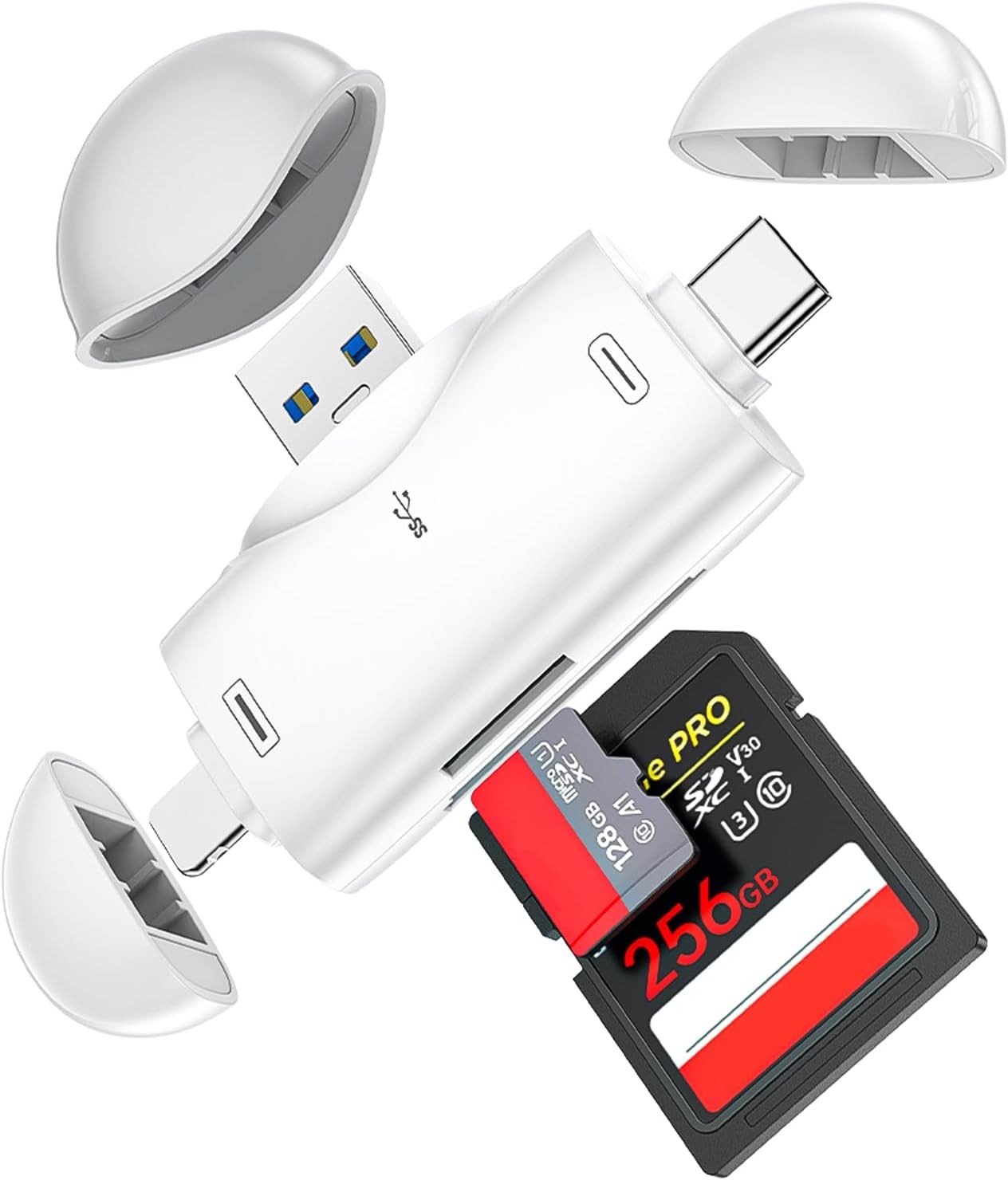
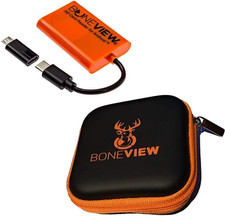
The USB-C connector is compatible with the following products:
1.Android smartphone and tablets with OTG function and USB-C port.
2. PC and laptop with USB-C port.
3. iPad Pro with USB-C port.
USB3.0 connector
The USB connector is compatible with PC and laptop with USB port
Functions
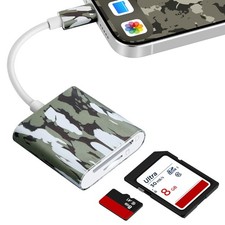
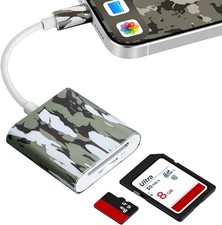
With this reader, you can read files from memory card directly. You can copy and paste files from memory card to your Smartphone (tablet, PC, or laptop and so on) or vice versa.
Note
Please insert two cards into the slot before you attach the reader to the USB-C port or USB port if you want to read two cards at the same time.
iPhone & iPad User
ForioS 9.2- iOS 12.4 user, find "Photos" app.
1.Insert a memory card that contains photos or videos into the card reader.
2.Turn on iPhone & iPad and attach the card reader to the Lightning port.
3.On iPhone & iPad, "Photos" app will pop up. Select the photos and videos that you want to import.
4.You can view the photos from Album and share it with your friends or family
Note
1.Regarding iOS13 or later, you can also follow this instruction, but the "Photos" app will not pop up automatically. You need to open it.
3.It can read one card at a time, because "Photo" app only recognizes one card. Even if you insert two cards, it can only read the TF card
iPhone & iPad User
For iOS 13 or later, find "Files" app.
1. Insert a memory card into the reader.
2. Turn on iPhone & iPad and attach the reader to the Lightning port.
3. On iPhone & iPad, open "Files" app.You can view the files in your card.
4.You can view most files like jpg, MP3,word, excel, ppt and so on. If you can view the files but can't open it, you may need to download a third-party
app to read this file.
5. You can delete files or copy and paste files from memory card to your iPhone or iPad. Or copy files from iPhone or iPad to memory card.
Note
1.Please insert two cards into the slot before you attach the reader to the Lightning port if you want to read two cards at the same time.
2.Most cards are named "Untitled" when produced and usually nobody revise the card's original name.However, the "Files" app will not able to recognize two cards at the same time, if two cards share the same name like "Untitled". So you need to revise one card's name by your computer to a different name, and "Files" can read two cards at the same time.
iPhone User Compatibility
iPhone Models
iPhone 14 Pro
iPhone 14 Pro Max
iPhone 14
iPhone 14 Plus
iPhone 13 Pro
iPhone 13 Pro Max
iPhone 13/13 mini
iPhone 12 Pro
iPhone 12 Pro Max
iPhone 12/12 mini
iPhone 11/ Pro/ Pro Max
iPhone XS/ XS Max
ihone X/XR
iPhone 8/8 Plus
iPhone 7/7 Plus
iPhone 6s/6s Plus
iPhone 6/6 Plus
iPhone 5s/5c/5
iPhone SE (1st, 2nd, 3rd generation)
iPad User Compatibility
iPad Models
iPad (9th Generation)
iPad Pro 12.9-inch (2nd Generation)
iPad Pro 12.9-inch(1st Generation)
iPad Pro 10.5-inch
iPad Pro 9.7-inch
iPad Air(3rd Generation)
iPad Air 2
iPad Air(1st Generation)
iPad (8th Generation)
iPad (7th Generation)
iPad (6th Generation)
iPad (5th Generation)
iPad mini(5th Generation)
iPad mini 4
iPad mini 3
iPad mini 2
iPad mini 3
iPad mini 2
iPad mini (1st Generation)